Yeelight smart home integration, free and open source
Control your Yeelight Wi-Fi lights locally: on/off, brightness, color.
Published by William-De71
- Devices
- Version 1.4.1
- Requires Gladys >=5.1.0
- ★ 0
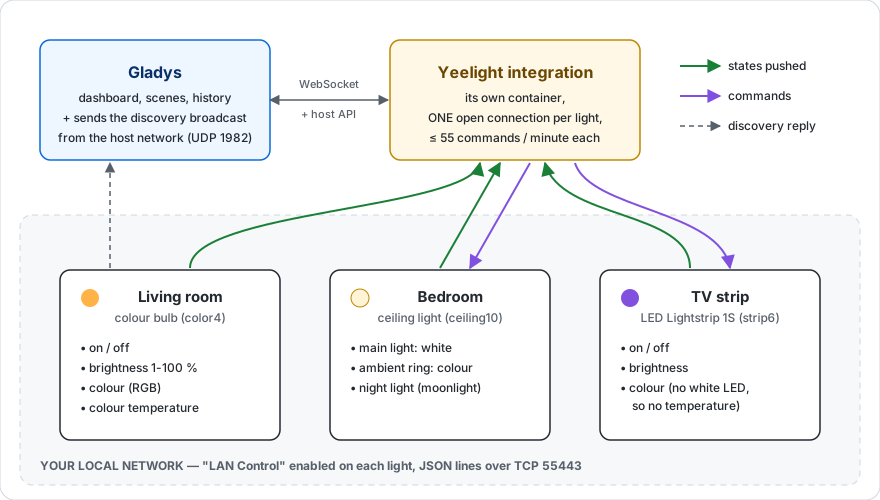
This integration lets you control your Yeelight lights (bulbs, LED strips, bedside lamps, ceiling lights) from Gladys Assistant, directly on your local network. No cloud account, no gateway, no middleman: Gladys talks to your lights itself.
Features
The integration adapts to what each light can do — a light advertises its own capabilities, and only the features actually available are created:
| Feature | Lights concerned |
|---|---|
| On / off | All |
| Brightness (1 to 100 %) | All dimmable lights |
| Color (RGB) | Color models (color, strips, bedside lamps) |
| Color temperature | Tunable-white and color models |
| Ambient light | Ceiling lights and light bars with a backlight |
| Night light (moonlight) | Ceiling lights |
It also brings scenes: start a scene when a light goes offline or comes back, and play a light effect (sunrise, sunset, alert, notification, candle) from a scene. See the Scenes section below.
States arrive in real time
Your lights push their state changes: the integration keeps a connection open to each light, and Gladys receives the new value the moment it changes — including when you use the Yeelight app, the remote, or the wall switch. There is no polling interval to set. Only the values that actually changed are sent to Gladys.
A light switched off at the wall
A light cut at the wall switch cannot say goodbye: it simply goes silent. So every minute, the integration asks each silent light whether it is still there. A light that does not answer is shown as Unreachable in Gladys within one to two minutes. When it is powered again, the integration reconnects to it on its own and the light goes back to Local — no action needed on your side.
Requirements
Gladys version
The integration requires Gladys 5.1.0 or newer, because of its scenes. On an older Gladys, the integration no longer receives updates and stays on version 1.3.0: update Gladys to get the new versions.
Enable "LAN Control" — mandatory
This is the step not to skip: by default a Yeelight light refuses every local command. Without this option the light is neither discoverable nor controllable.
For each light, in the Yeelight app:
- Open the light.
- Go to Settings (icon in the top right corner).
- Enable LAN Control (also called "Developer mode").
Do this for every light, one by one. It is a setting stored in the light itself.
Network
- Gladys and your lights must be on the same subnet for automatic discovery to work.
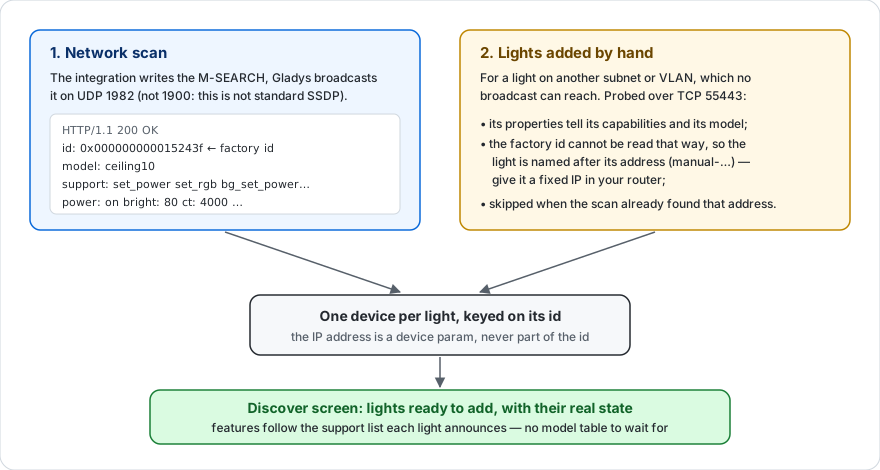
- Discovery broadcasts a request on UDP port 1982. A broadcast never crosses a router: if your lights sit on another VLAN or subnet than Gladys, the scan will not find them — that is a network boundary, not a setting to tune. Raising the scan duration changes nothing.
- In that case, add your lights by hand (see below): control itself is direct TCP and works fine across subnets, as long as they are routed.
Configuration
1. Discover your lights
Once "LAN Control" is enabled, open the integration's Discover screen and run a scan. Your lights appear with their name (the one you gave them in the Yeelight app), ready to be added. No IP address to type.
2. Transition duration
Sets the fade applied to every change (switching on, dimming, color). The default of 500 ms gives a smooth, natural transition. Set 0 for an instant change.
3. Lights not found by the scan
Two cases lead here, and the second is the most common:
- "LAN Control" is not enabled on the light (see Requirements);
- your lights sit on another subnet / VLAN than Gladys — the scan structurally cannot reach them, but control works.
Add their address under Lights added by hand, separated by a comma (the port is optional, 55443 by default):
192.168.1.42, 192.168.1.43:55443
An IPv6 address goes in brackets: [fe80::1] or [fe80::1]:55443. A light both declared here and found by the scan is listed only once, under the identity the scan gives it.
Important: give those lights a fixed IP address in your router. Unlike a light found by the scan — identified by its serial number, stable for life — a light added by hand is identified by its address. If its DHCP lease changes, Gladys will see it as a different light.
4. Discovery duration
How long the scan listens for answers. 5 seconds is plenty in most cases; raise it if your network is busy and some lights are missing.
Available actions
- Test the connection: runs a discovery and reports how many lights answered.
- Reconnect the lights: closes every connection and reopens them. Useful after a power cut or a network change.
Scenes
Triggers
- Yeelight light offline: a light stopped answering for 30 seconds — switched off at the wall, a power cut or a Wi-Fi problem. It is detected within about two minutes. A light switched off and on again within 30 seconds starts nothing, nor does a light that was already off when the integration started. Filter: the light; leave it empty to watch every light. Variables: Light identifier, Light name, Address.
- Yeelight light back online: a light reported offline answers again. It only follows a Yeelight light offline that was fired. Filter: the light. Variables: Light identifier, Light name, Address, Minutes offline.
Only the lights you added to Gladys can start these scenes.
Actions
Yeelight: play a light effect — fields: the light, the effect, and the Duration (minutes) (1 to 60, 15 by default; sunrise and sunset only).
| Effect | What the light does |
|---|---|
| Sunrise (ends on) | Goes from a deep orange at 1 % to a neutral white at 100 % over the duration; stays on |
| Sunset (ends off) | Goes from a warm white to a deep orange at 1 % over the duration, then turns off |
| Alert: red flashes | 10 red flashes (about 5 seconds), then back to how it was — off if it was off |
| Notification: blue pulses | 4 soft blue pulses (about 5 seconds), then back to how it was — off if it was off |
| Candle (until stopped) | An amber flicker that lasts until you stop it or send the light another command |
The effect runs inside the light itself: a 30-minute sunrise keeps going even if Gladys restarts in the meantime. A white-only light (ceiling light, desk lamp) plays the same effect in white: a cold white flash for the alert, a warm flicker for the candle. The output Light name is available to the next actions of the scene.
Yeelight: stop the light effect — field: the light. Stops the effect in progress; the light keeps its current colour and brightness.
An effect never starts the offline or back online triggers: it changes the colour of a light, not its connection.
Examples
Wake up with a sunrise. Trigger Scheduled trigger, 6:45 on weekdays. Action Yeelight: play a light effect: light "Bedroom", effect Sunrise (ends on), duration 20. The light starts at a faint orange glow and reaches full white at 7:05.
Get warned when a light is switched off at the wall. Trigger Yeelight light offline, light left empty. Action Send Message: "Light name has been switched off at the wall", inserting the variable Light name in the message. Handy for a light that must stay powered, like a hallway light used by your motion scenes.
A discreet notification. Trigger Device state change: the washing machine plug drops below 5 W. Action Yeelight: play a light effect: light "Living room", effect Notification: blue pulses. If the light was off, it turns back off after the pulses.
A candle in the evening. One scene at sunset plays Candle (until stopped); another, at bedtime, runs Yeelight: stop the light effect then switches the light off.
Good to know
Setting a color on a light that is off
A Yeelight refuses color, temperature and brightness commands while it is off. The integration turns it on automatically before applying your setting: clicking a color therefore switches the light on in that color, which is what you meant.
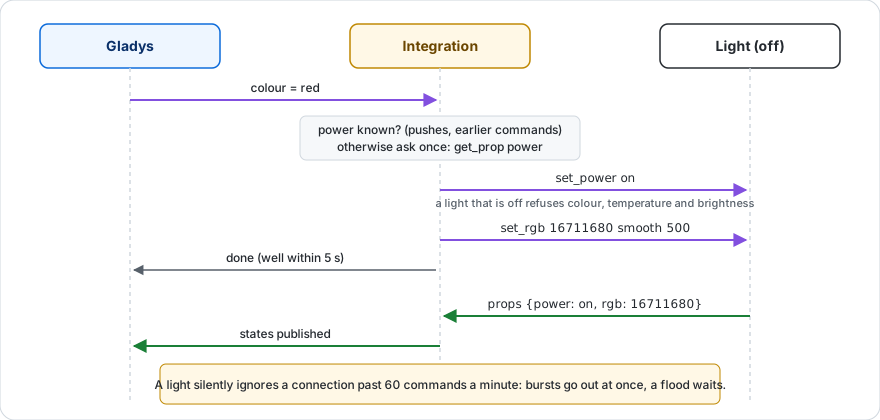
The power state is known from what the light already reported, so a light that is on is not switched on again — that would restart its fade, visibly.
Brightness starts at 1 %, not 0 %
A Yeelight has no "0 %" state: zero means off. Setting the brightness to 0 in Gladys therefore switches the light off.
The color shown in white mode
When a light is in white mode (color temperature), it still remembers the last color used. Gladys deliberately does not show it as the active color, so you never see a color the light is not actually displaying.
Ceiling lights have two independent lights
A ceiling light with a backlight (ceiling10, light bars…) exposes two separate lights, and Gladys names them explicitly:
- Main light, Main brightness, Main colour, Main colour temperature;
- Ambient light, Ambient brightness, Ambient colour, Ambient colour temperature.
Each one switches on and off independently of the other. To drive both in one go, create a Gladys scene acting on both switches — that is how Gladys groups several commands.
Ambient colour temperature only appears on models whose backlight can tune its white — the warm/cold slider the Yeelight app shows next to the ring's colour wheel.
On a light without a backlight there is only one light, and the labels stay simple (On/Off, Brightness, Colour, Colour temperature). The night light of a ceiling light is called Night light. These names are set by the integration in English, whatever the language of Gladys; you can rename any feature in Gladys.
If your ceiling light switches its ring on and off together with the main light, that is not Gladys: it is the "Auto on/off with the main light" option in the Yeelight app. Turn it off to drive each light separately.
Colour temperature
The temperature slider follows the Gladys gradient: left is cold, bluish light; right is warm, orange light. The integration converts that value into the Kelvin the light understands, respecting the real range of your model (2700–6500 K on a ceiling light, 1700–6500 K on a colour bulb).
Light limits
Each light accepts 4 simultaneous connections and 60 commands per minute. The integration opens a single connection per light and smooths command bursts automatically, but keep those limits in mind if you also drive your lights from other apps at the same time. The check of a silent light costs one command per minute.
Troubleshooting
| Symptom | Most likely cause |
|---|---|
| No light found | "LAN Control" is not enabled in the Yeelight app |
| Only one light out of several is found | The option is only enabled on that one — it is set per light |
| A light disappears then comes back | Wi-Fi drop or wall switch: the integration reconnects on its own, backing off |
| A light shows "Unreachable" | It is switched off at the wall or out of Wi-Fi range; it comes back once powered again |
| A hand-added light becomes unknown | Its IP address changed — give it a fixed address in your router |
| Commands stop working after a while | Another piece of software is holding the light's 4 connection slots |
| A light added by hand is ignored | Its address changed, or the brackets are missing around an IPv6 address |
| The "offline" scene does not start | The light came back within 30 seconds, was already off when the integration started, or is not added to Gladys |
| The effect action fails | The light is unreachable at that moment, or its model does not support effects |
Configuration settings
These are the settings Yeelight asks for in its configuration screen in Gladys.
| Setting | Type | Required | Description |
|---|---|---|---|
| Getting started | section | No | This integration talks to your Yeelight lights on your local network, with no cloud account involved. One thing to do first: in the Yeelight app, open each light and enable "LAN Control" (Settings → LAN Control). A light without it refuses every local command and will not be found. Then go to the Discover screen and run a scan: your lights appear there, ready to be added. No IP address to type. |
| Transition duration (ms) | number | No | How long a light takes to fade to its new state. Set 0 for an instant change. |
| Lights not found by the scan | section | No | Fill the field below if a light is not found by the network scan. The most common reason: your lights sit on another subnet or VLAN than Gladys — the discovery broadcast does not cross a router, so the scan cannot reach them, while control itself works fine. Raising the discovery duration does not help in that case. |
| Lights added by hand | string | No | One address per light (192.168.1.42, or 192.168.1.42:55443), separated by a comma. Give these lights a fixed address in your router: unlike a light found by the scan, one added by hand is identified by its address, and a new DHCP lease would make Gladys see it as a different light. |
| Discovery duration (s) | number | No | How long the scan listens for lights answering on the network. Only useful on a busy network: it cannot help if your lights are on another subnet. |
How to install Yeelight in Gladys
- In Gladys, open Integrations: Yeelight appears in the catalog, next to the native integrations, with a community badge.
- Click Install. Gladys pulls the Docker image (
ghcr.io/william-de71/gladys-yeelight:1.4.1), starts it in a sandbox isolated from the core, and generates the integration's interface (devices, discovery and configuration). - Open the Configuration screen of the integration, fill in the settings, and save.
- You can also install it directly from its repository URL: https://github.com/William-De71/gladys-yeelight.
Yeelight requires Gladys >=5.1.0. The catalog inside Gladys refreshes every hour, so a new version becomes available at most one hour after its release.
Not running Gladys yet? It is free and open source: follow the installation guide to get started.
About external integrations
Yeelight is an external integration: a community integration packaged as a Docker container and published on GitHub, that Gladys installs in one click and runs in a sandbox isolated from its core. It is published and maintained by William-De71, not by the Gladys core team.
- Browse all integrations, native and community
- Build and publish your own external integration
- Source code on GitHub — source of this documentation